Account & Billing
Two-factor authentication (2FA)
Two-factor authentication (2FA) adds a second step at sign-in. After your password you enter a 6-digit code from an authenticator app, so your account stays safe even if your password leaks.
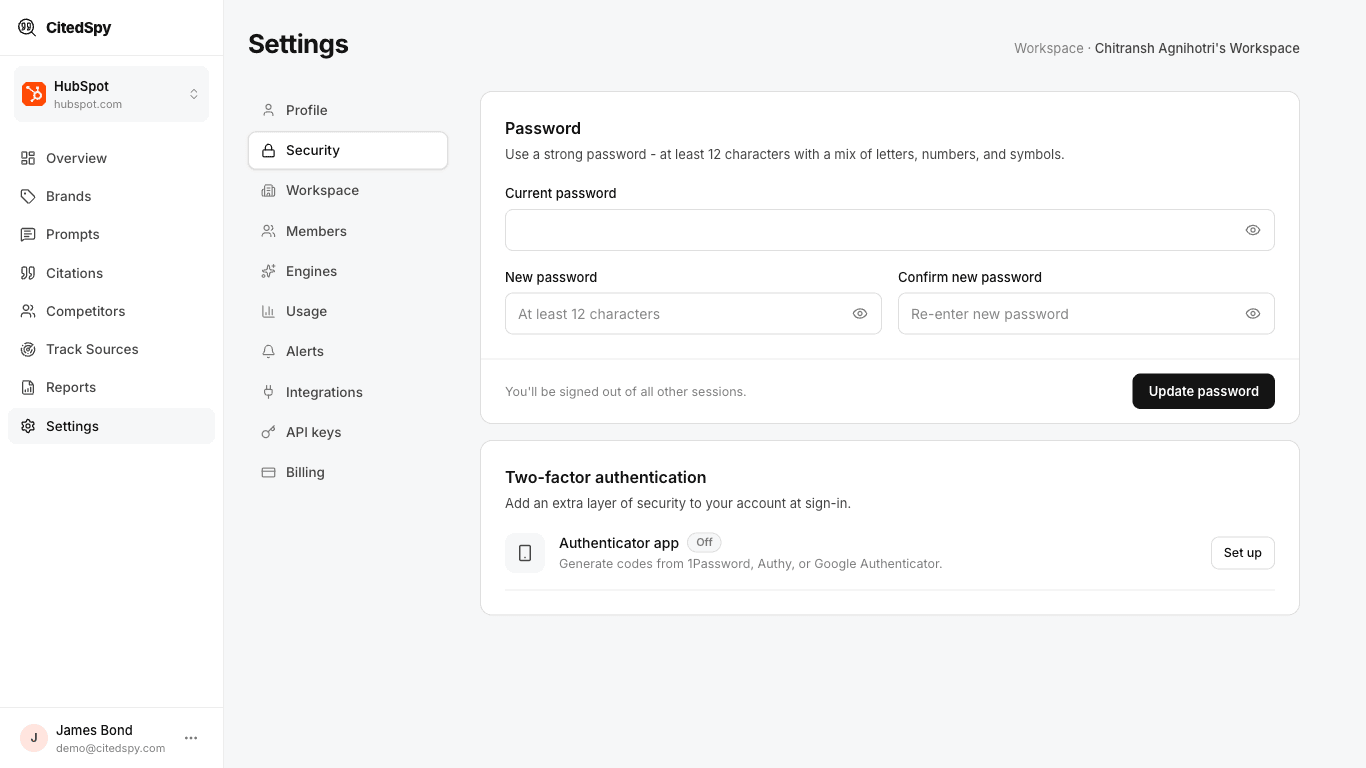
Turning 2FA on
- Go to Settings > Security and click Set up under two-factor authentication.
- Scan the QR code with an authenticator app - Google Authenticator, Authy, and 1Password all work. Can't scan? Open "Enter the key manually" and type the secret into your app.
- Enter the 6-digit code your app shows and click Activate 2FA.
2FA is now required the next time you sign in.
Signing in with 2FA
After your email and password, CitedSpy asks for the current 6-digit code from your authenticator app. Codes rotate every 30 seconds, so enter the latest one to finish signing in.
Turning 2FA off
- Go to Settings > Security and click Disable.
- Enter a current 6-digit code from your authenticator app.
- Click Confirm disable.
Locked out?
CitedSpy does not use one-time backup codes, so keep your authenticator safe - most apps back up to the cloud or run on more than one device. If you lose access, contact us at citedspy.com/contact and we will verify you and restore access.